
INFERNO INSTALL
Below are images and guidance for installing the Engage Inferno and general usage.
Here are tg details of the items you will recieve
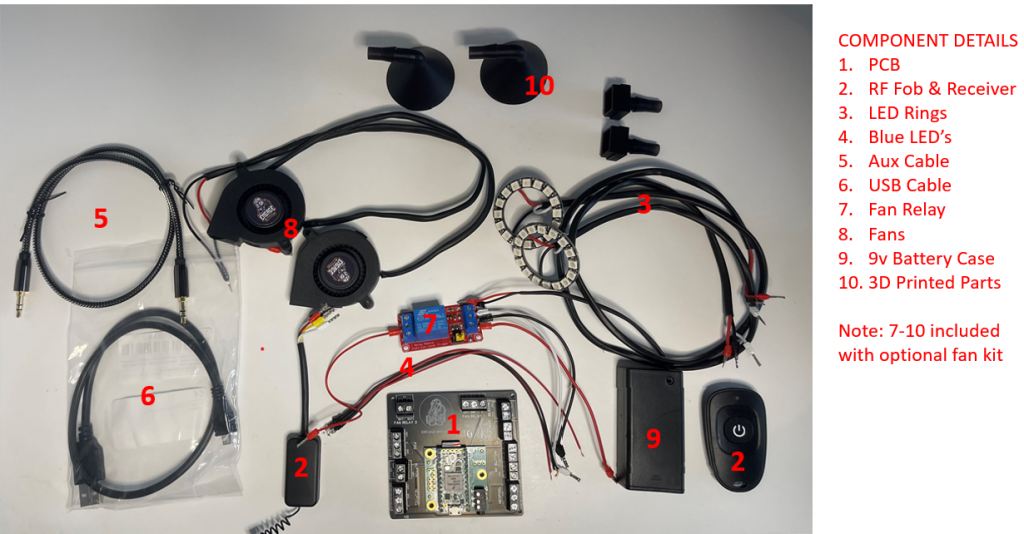
**NOTE – The 9v battery only powers the fans. A USB power pack will be needed to power the main unit (Light & Sound).**
For installing I recommend using Velcro and a hot glue gun. Below is a guideline for my install. I’ll update it as necessary with any recommendations as I use my personal kit.
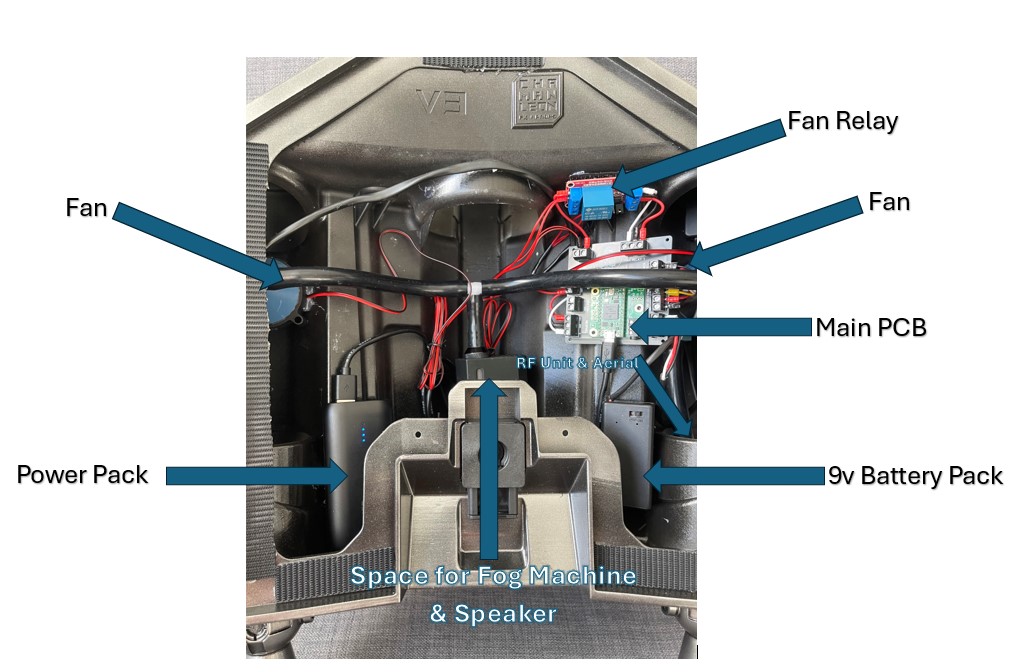
I recommend adding Velcro to the back of the main PCB & RF antenna unit, if you have the fan kit then adding Velcro to the relay & 9v battery case. Additionally I added Velcro to my power pack to prevent it moving around. Once your Velcro is glued to the units add the other side of the Velcro (intended to be glued into the Jetpack) onto the Velcro on your units. When ready you can add hot glue and then hold each component into position in the Jetpack.
The pictures used for this install are in the Mandalorian Rising Phoenix. However the principle should be similar in other jetpack models.
You can follow the below connectivity diagram (details are also on the PCB).
When tightening the terminal block screws just tighten until there is resistance. Screwing down too hard will damage the wire connectors causing them to break.
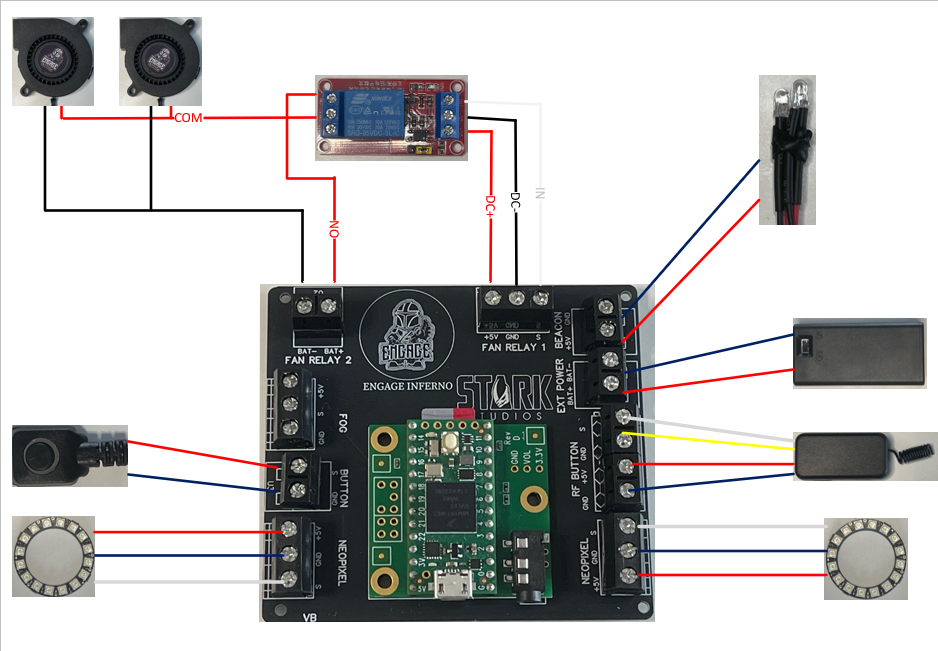
Click the images below to see full size.
RECOMMENDED COMPONENT LOCATIONS
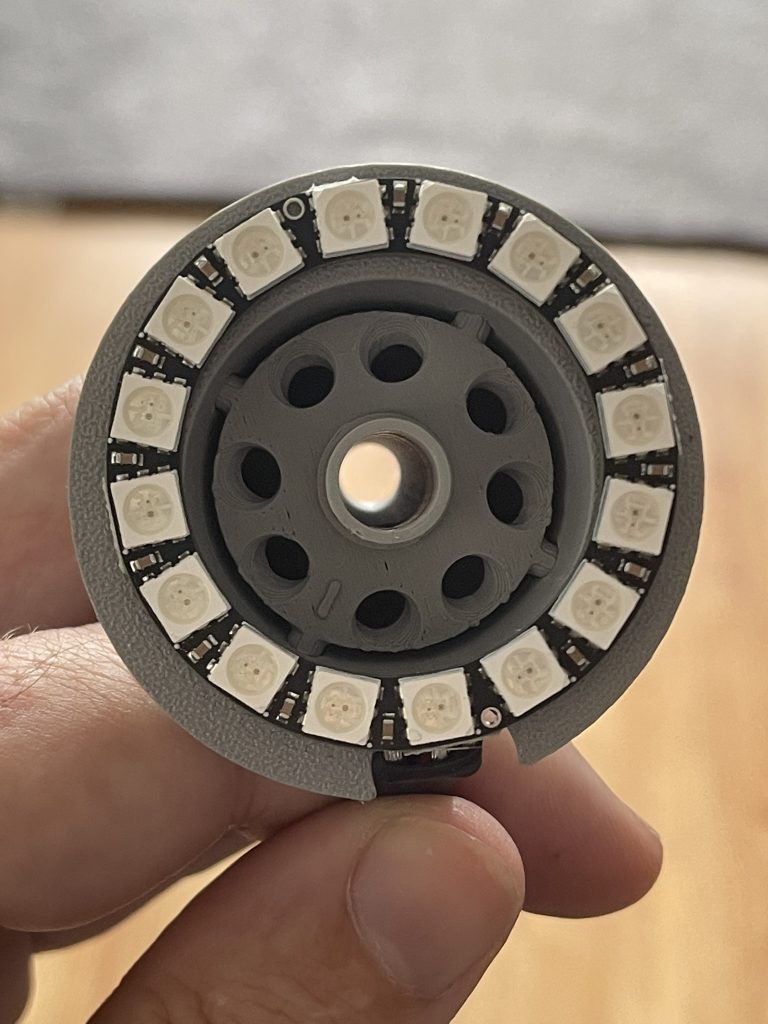
I recommend installing the LED rings and Beacon LED’s first and running the cables into the main housing ready to be connected. If using the smoke defusers then hot glue the LED’s on them first, attach your silicone hosing (don’t cut to length yet) and feed the hose & wiring into the main jetpack bay and then hot glue the defuser into the Jetpack boosters.
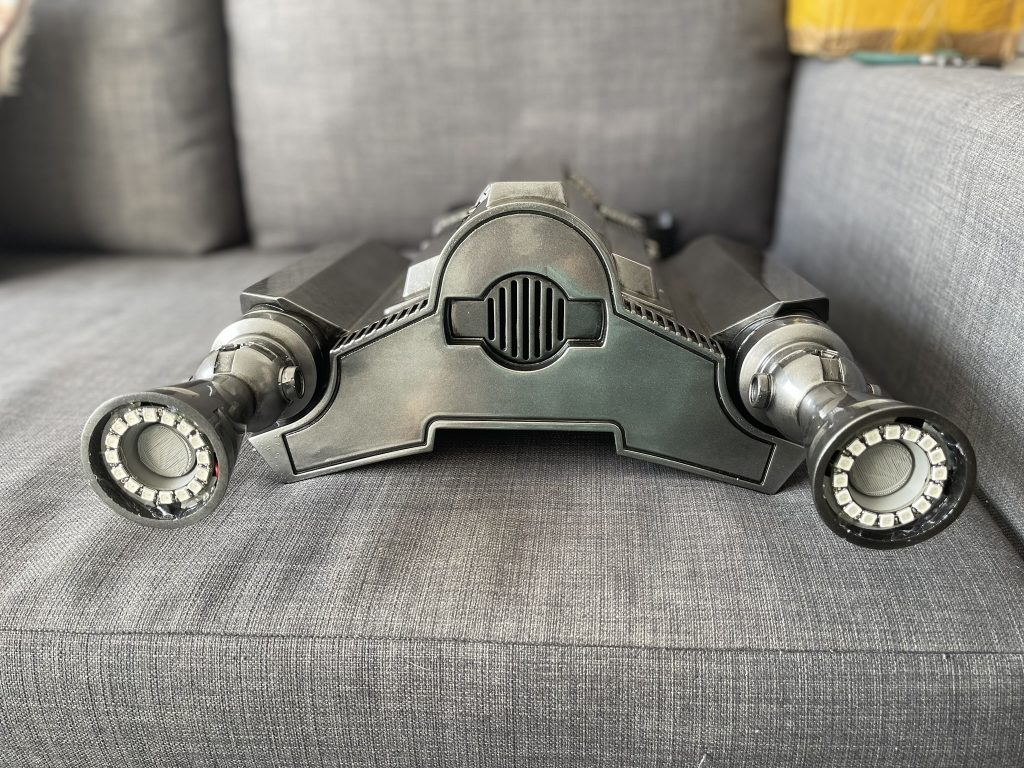
Then with the RF unit connected to the PCB (saves fiddling with connecting later) I recommend extending the aerial and placing it down into the booster housing.
You can now connect the LED rings (one will be longer than the other, use the longer one for the LED furthest away from the main unit) and Beacon LED’s to the PCB and mount and connect the relay if your also installing fans. The 9v battery case can also go in and be connected. A wired button is also included which can be added into the Jetpack for testing purposes.
Installing the fans is a tricky part, I found Velcro wont work for these but instead found having them loose is a safer easier choice. Once attached to the Microfogger they will keep in place once positioned. Before installing the fans add the included 3D printed parts. The downward nozzle will hold in place within the fan (a small amount of sanding may be required to get it to fit snug). The funnel shaped nozzle needs to be hot glued onto the fan over the fan blades, then highly recommend adding hotglue to close up the seal and holes around the fan to prevent smoke from leaking out.
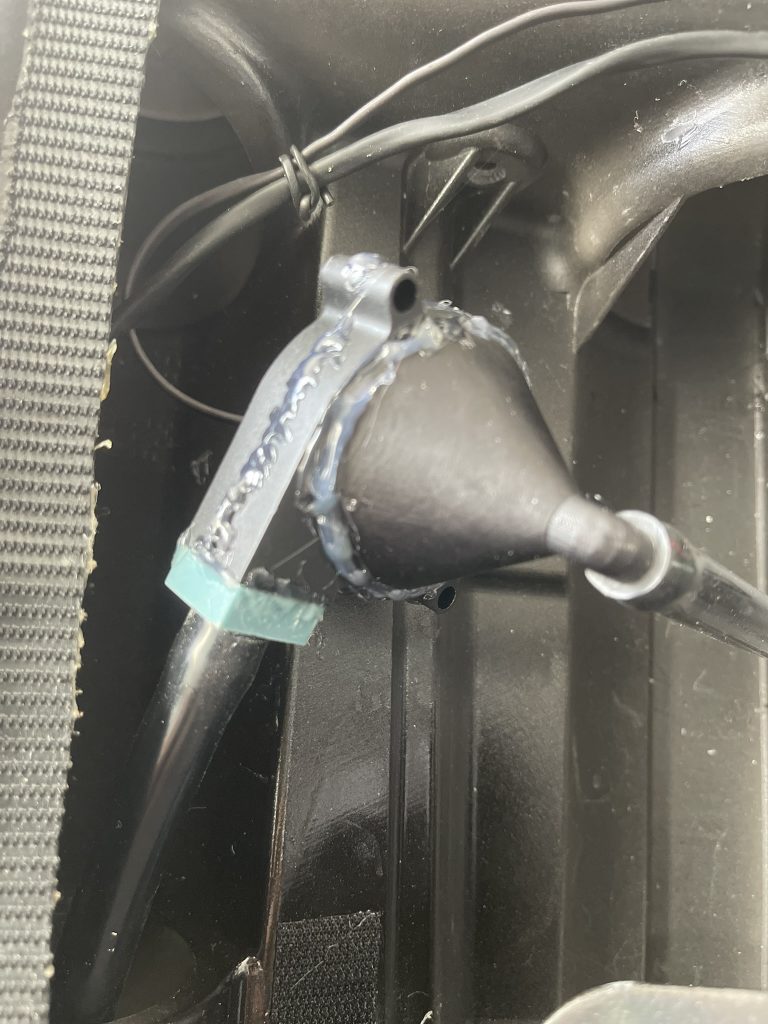

Fan with 3D printed parts attached
Do a test placement of the fan to measure the lengths of silicone hosing (purchased with your Microfogger if using) and then cut to length.
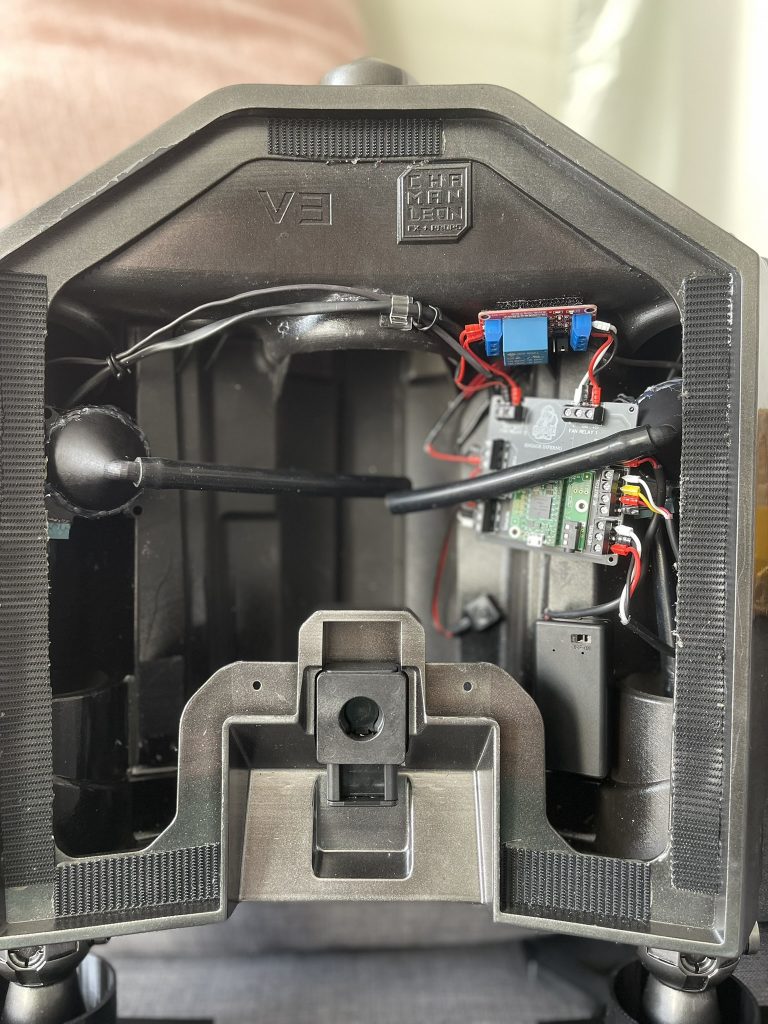
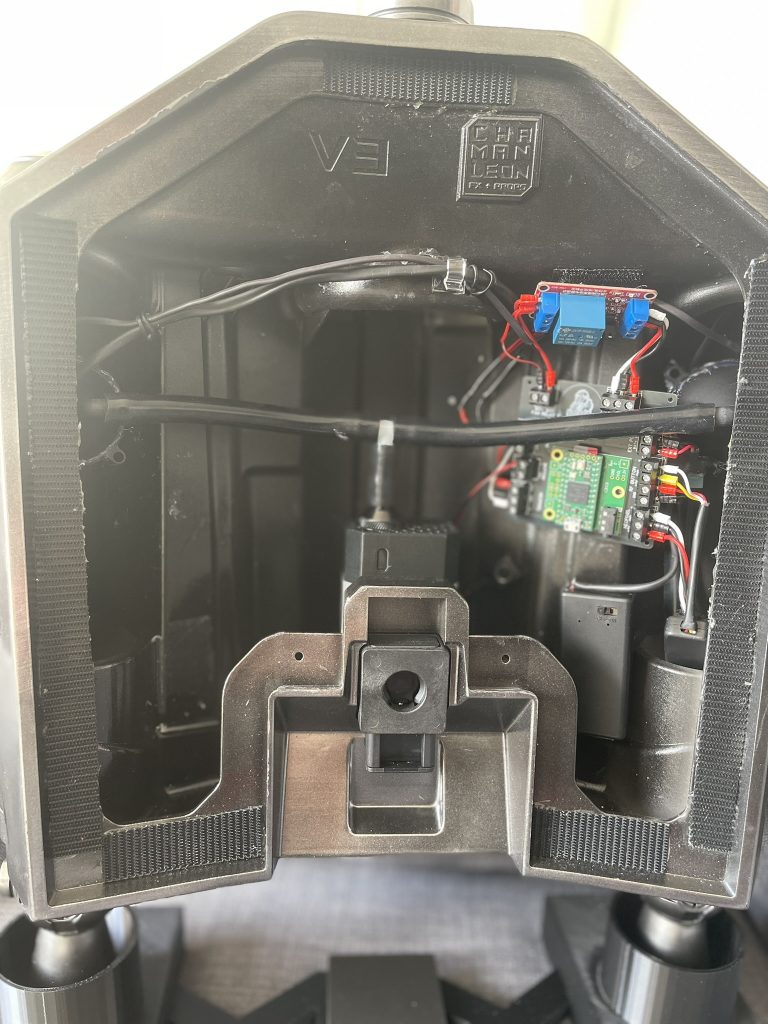
Do some practise placements and ensure the silicone hose isn’t too long from the Microfogger to the fan that might add too much strain.
Be careful with the 3D printed parts, excessive force will cause them to break.

When Installing your fans ensure they and the hosing is below the disk locks (if you have them) shown here. These are set back and can add pressure causing damage when the back plate is mounted.
Once installed your fans can be connected to the PCB. The final stage is to mount your power pack and connect it and your speaker and confirm everything is working as expected. If installing the Microfogger this will stay in place by the fan hosing and doesn’t need to be set/Velcro in place. This is important in case it needs to be removed and refilled.
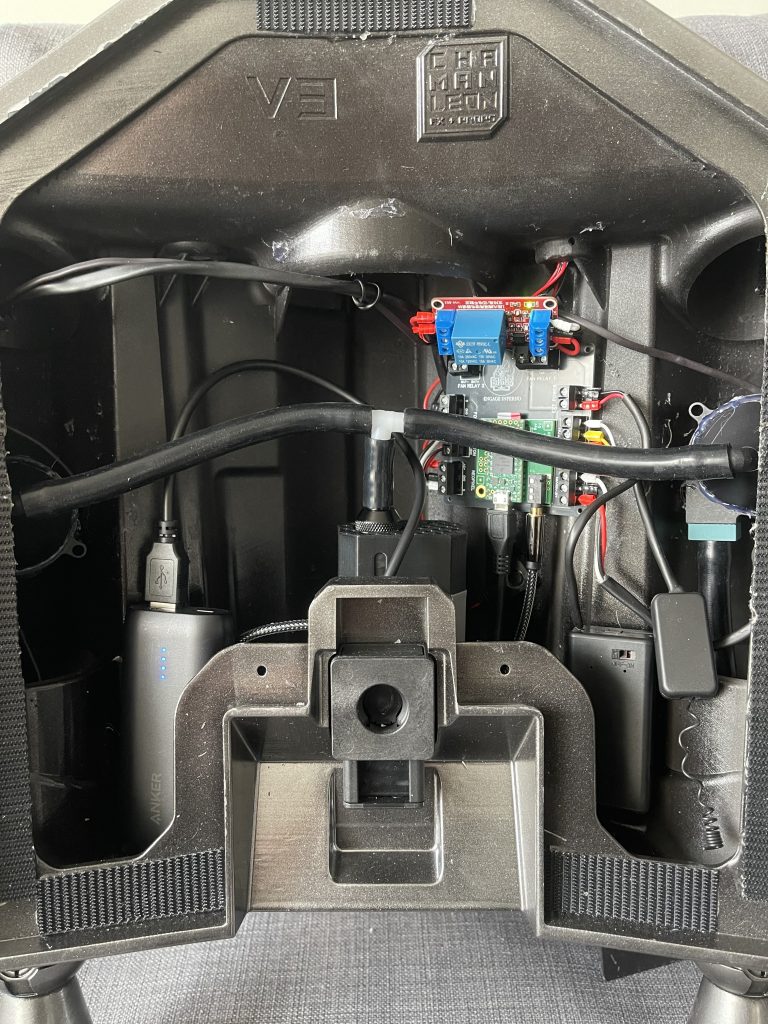
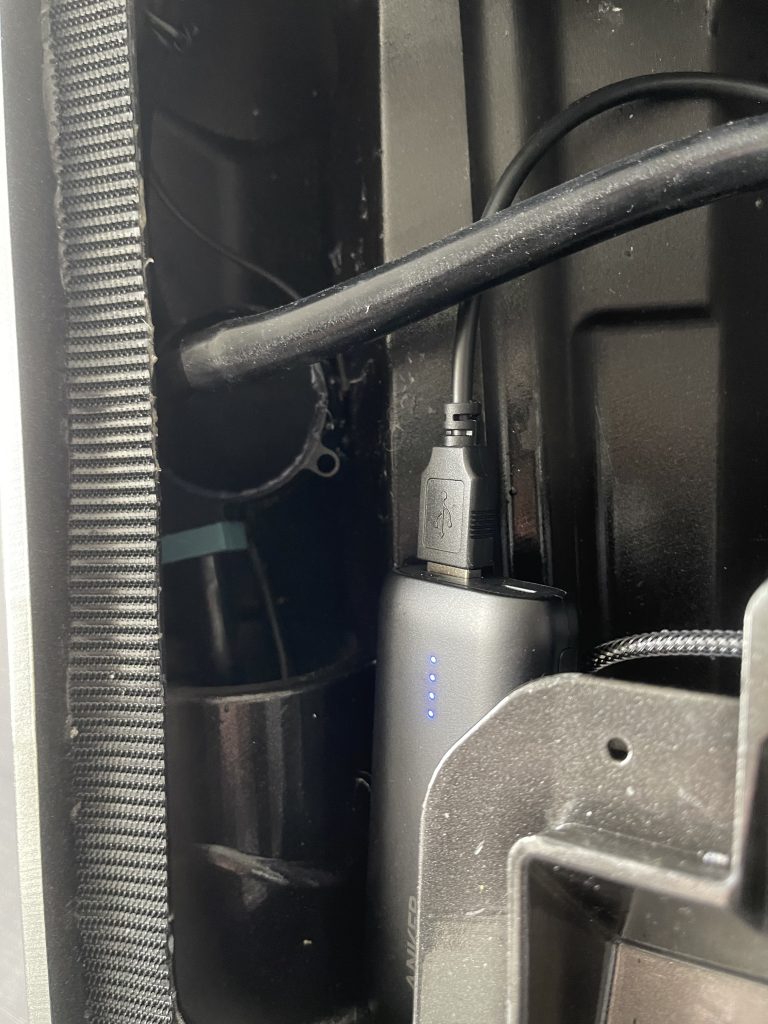
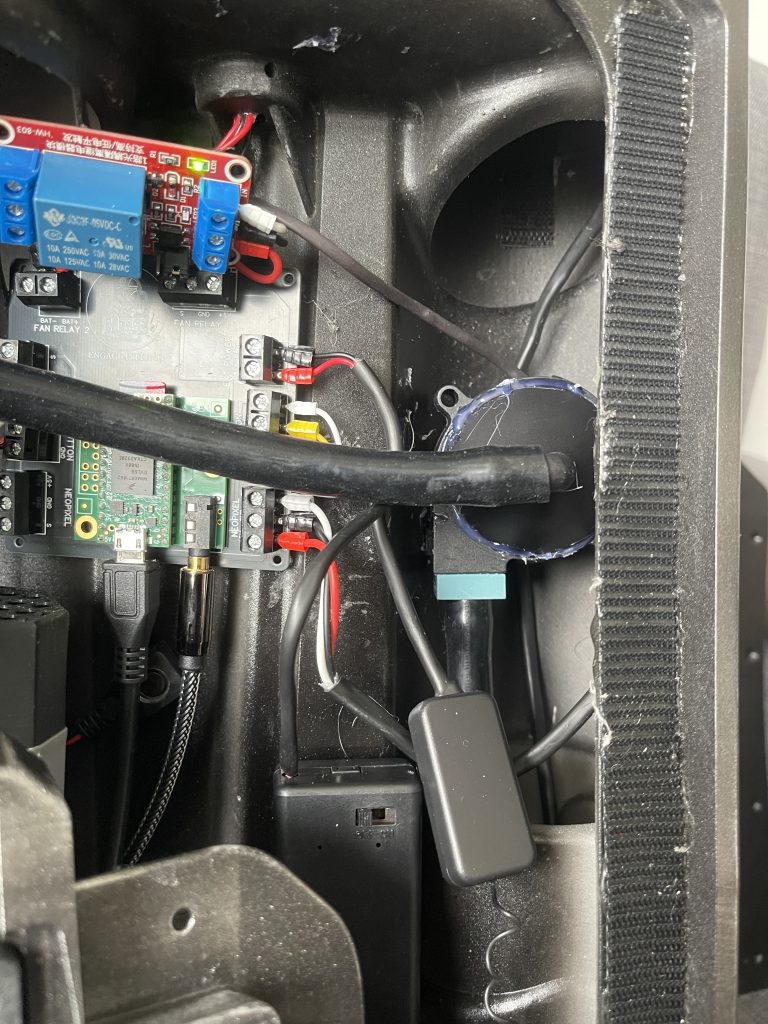


Powering on is as simple as connecting the speaker and power pack. An announcement can be heard stating the unit is online. It can then be activated either by the test button or RF Fob.
BINDING YOUR RF UNIT TO THE MICROFOGGER PRO
Your Microfogger Pro will have come with an RF Remote. However we need to reconfigure the Microfogger to use the RF unit provided with your Inferno kit. This is easily done in the Microfogger advanced menu.
Hold the Mode button on the front of the unit until the display changes. Press the Mode button repeatedly until Advanced menu shows on the display. Click the select button. Press the mode button until Remote PROGRAM appears. Press the select button.
The screen will shows Press A. Now click and hold the button on your RF Fob. The display will change to release. Let go of the button. The display will now show Press B. Repeat the process of holding and released for B, C & D. Eventually the screen will display DONE then go back to Remote PROGRAM. Click the large Smoke button twice to come out of the Menus.
You can now press the RF Fob and your smoke machine will trigger.
ALTERNATE FOG MACHINES
At this moment in time we havn’t tesed with other fog machines. When time allows we will update this page with any other recommendations. However technically any fog machine that can be triggered via RF signal should work with the Inferno. EIther the Fog machine configured to trigger from the Inferno remote or the Inferno triggered from the fog remote.
TROUBLESHOOTING
Fans are not spinning :
Check the switch on the 9V battery box is in the ‘On’ position. (I’ve missed this many times!) If the fans are still not spinning you can try directly touching the fan wires to the 9v Battery box wires or the battery itself to ensure the battery is working as expected. Lastly double check the relay and fan wiring.
When holding the RF Button the LED’s & Sound are going on & off repeatedly
This can be caused by an issue between the RF Button and the receiver. Move the RF button closer to the unit until everything works as expected. This can also be remediated by moving the RF receiver or expanding the wire to a location that will be closer to the RF unit in the hand you intend to use.
Nothing happens when holding RF Button.
If all wires are connected this is likely due to the battery in the RF fob. Use the wired button to confirm everything else works as expected. If it does then try replacing the battery in the fob.