
WiFi Portal
The WiFi Portal allows you to access your Engage Pro Elite from a browser to manage firmware, settings, and diagnostics.
📡 What is the WiFi Portal?
The WiFi Portal is a built-in web interface that lets you:
- Update firmware
- Adjust settings
- View diagnostics and logs
It runs directly on the device and is accessed over WiFi.
VIDEO DEMOS Activating Wifi Portal
VIDEO DEMOS Wifi Portal Overview & Functions demos
▶️ How to Enter WiFi Portal Mode
You can activate the Wifi portal two ways. First-
- If the unit is powered off
- Hold Button 8
- While holding Button 8, power on the device
- Release the button after 2-3 seconds
- Unit will confirm Wifi mode with 2 flashes of the Blue LED
Second-
- If unit is already powered on
- Hold Button 8
- On the main unit press and release Button 2
- Unit will confirm Wifi mode with 2 flashes of the Blue LED
📶 Connect to the Device
- On your phone or computer, open WiFi settings
- The device will now create its own WiFi network. Something similar to this.
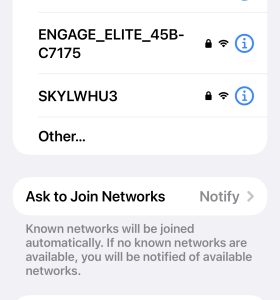
- Enter password: engage1234
🌐 Open the Portal
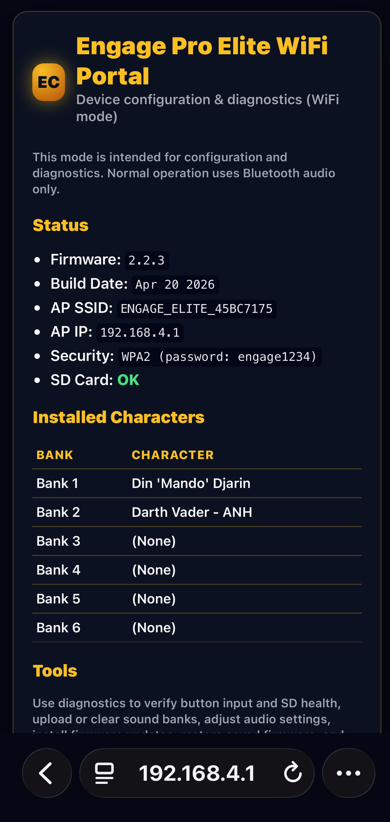
Once connected, open a browser and go to: http://192.168.4.1
⚠️ Important Notes (Very Important)
- The device WiFi does NOT provide internet access
- Your phone may warn:
- “No internet connection”
- “Switch network?”
👉 Stay connected to the device WiFi
📱 Mobile Device Tips
If the portal does not load:
- Disable mobile data (4G/5G)
- Turn off “Smart Network Switching” (if enabled)
- Try another browser (Chrome/Safari)
💻 Computer Tips
- Ensure you are connected to the device WiFi (not your home network)
- Try a different browser if needed
❌ Common Issues
Portal Not Loading
- Not connected to device WiFi
- Mobile data interfering
- Incorrect IP address
Keeps Asking for Password
- Ensure password is exactly: engage1234
- Forget network and reconnect
Page Loads but Looks Broken
- Refresh the page
- Try a different browser
🔄 Exiting WiFi Mode
To return to normal operation:
- Power off the device
- Power on normally (no buttons held)
🛠 What You Can Do in the Portal
- Update firmware
- View diagnostics
- Check system status
🛠 Still Having Issues?
👉 See: Troubleshooting Guide
👉 See: How to Report an Issue
Was this article helpful?
Your feedback helps us improve these guides.