
Troubleshooting Guide
This guide helps diagnose and resolve common issues with your Engage Pro Elite.
🧭 How to Use This Page
- Find the issue closest to your problem
- Follow the steps in order
- If the issue persists, report it using: 👉 How to Report an Issue
🔊 No Audio Output
Possible Causes
- Not connected to a speaker
- Wrong audio mode
- Volume too low
- SD card or file issue
Fix Steps
- Check volume:
- Increase volume on your speaker
- Adjust volume via Adjust Volume Settings
- Confirm audio mode:
- Bluetooth → ensure speaker is connected
- Wired → ensure cable is connected and powered
- Test wired mode:
- Boot with Button 4 held
- Connect headphones or speaker
- Restart the device
🔵 Bluetooth Not Connecting
Possible Causes
- Speaker not in pairing mode
- Speaker connected to another device
- Pairing data needs resetting
Fix Steps
- Ensure speaker is in pairing mode
- Make sure speaker is not connected to another device
- Reset pairing:
- Hold Button 1 + Button 2
- Press Button 5
- Restart both devices
👉 See: Bluetooth Setup & Pairing
⏱ Audio Delay on Startup
Behaviour
- Audio plays a few seconds after boot
Explanation
- This is normal while Bluetooth connection is established
Action
- No action required
📡 WiFi Portal Not Loading
Possible Causes
- Not connected to device WiFi
- Mobile data interfering
- Browser issue
Fix Steps
📶 Connect to the Device
- On your phone or computer, open WiFi settings
- The device will now create its own WiFi network. Something similar to this.
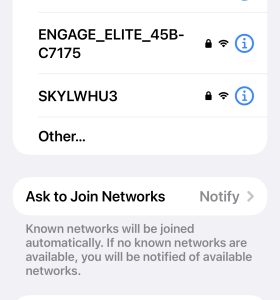
- Enter password: engage1234
🌐 Open the Portal
Once connected, open a browser and go to: http://192.168.4.1
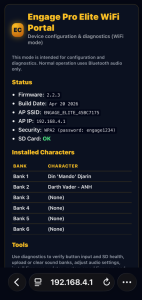
👉 See: WiFi Portal Mode
🔁 Firmware Update Fails
Possible Causes
- Corrupt file
- Interrupted upload
- Connection issue
Fix Steps
- Re-download the
.binfile - Reboot device
- Re-enter WiFi Portal Mode
- Retry upload or revert to previous firmware version
⚠️ Do not power off during update
👉 See: Firmware Update Guide
🔘 Buttons Not Responding
Possible Causes
- Device still booting
- SD card issue
- Firmware issue
Fix Steps
- Wait for full boot completion
- Restart the device
- Check SD card status in Wifi Portal’s Diagnostic page. Load page and click on SD Test. Does it complete successfully?
- Check Button status via Wifi Portal’s Diagnostic page. Press each button and confirm if the status changes in the portal.
🔊 Low Volume or Distortion
Possible Causes
- Volume set too low/high
- Speaker limitations
Fix Steps
- Adjust volume via Adjust Volume Settings
- Adjust speaker volume
- Reduce volume if distorted
📶 WiFi Connection Issues
Possible Causes
- Incorrect password
- Cached network
- Device interference
Fix Steps
- Ensure password is:
- Forget the network and reconnect
- Restart device
🔄 Device Not Responding After Update
Fix Steps
- Power cycle the device
- Re-enter WiFi Portal Mode
- Reinstall firmware
🧪 Diagnostic Tip
Use wired mode to isolate issues:
- Works in wired but not Bluetooth → Bluetooth issue
- Fails in both → firmware, SD card, or hardware issue
👉 See: Wired Mode (3.5mm Audio)
🐞 Still Not Working?
If your issue is not listed:
Was this article helpful?
Your feedback helps us improve these guides.