
Adjusting Volume (WiFi Portal)
This guide explains how to adjust the volume on your Engage Pro Elite using the WiFi Portal. You need a device connect to the Aux port to hear the ‘test audio’ as Bluetooth cannot be active at the same time as Wifi. Some wired headphones would suffice.
NOTE – Audio via Aux is always louder than Bluetooth. So take that into consideration.
🔊 Overview
Volume is controlled via the WiFi Portal and applies to:
- Bluetooth audio output
- Wired (3.5mm) audio output
The setting is saved and will persist after power off.
📡 Step 1 – Enter WiFi Portal Mode
- Power off the device
- Hold Button 8
- While holding Button 8, power on the device
- Release once the device starts
📶 Step 2 – Connect to the Device
- The device will now create its own WiFi network. Something similar to this.
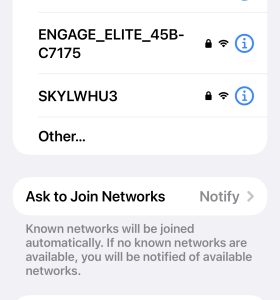
- Enter password: engage1234
🌐 Step 3 – Open the Portal
Open a browser and go to: http://192.168.4.1
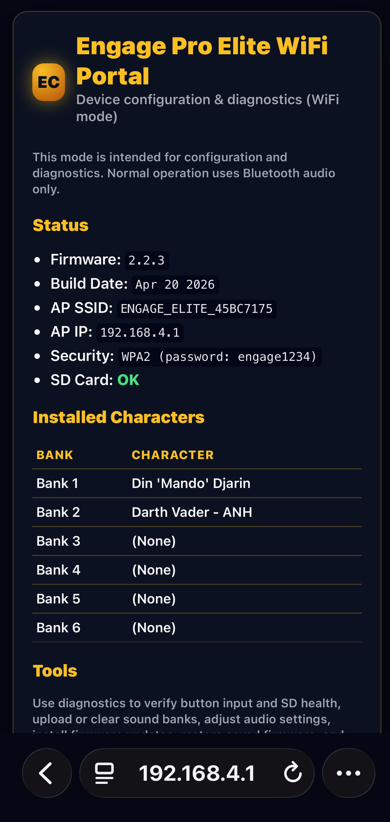
🎚 Step 4 – Adjust Volume
- Navigate to the Audio page via link at the bottom.
- Use the slider to set your desired level
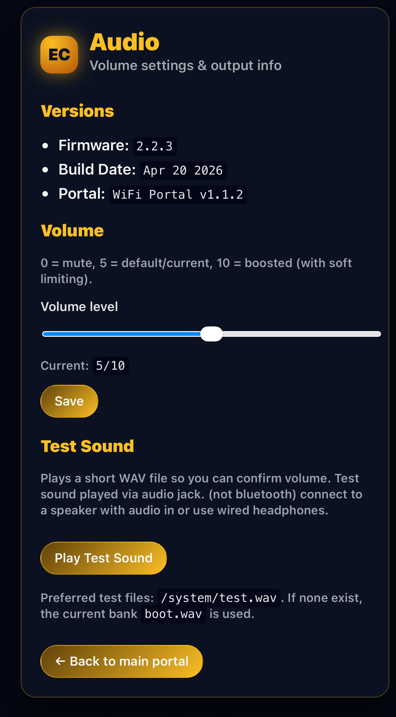
Volume range:
- 1 = Lowest
- 10 = Highest
🔊 Step 5 – Test Volume
- Adjust the slider
- Use the button to play a Test Sound
- Fine-tune as needed
💾 Step 6 – Save Settings
- Click on Save
- The selected level will persist after reboot
⚠️ Important Notes
- Volume affects both Bluetooth and wired output
- External speaker volume should also be adjusted as needed
- Very high volume may cause distortion depending on your speaker
❌ Common Issues
Volume Too Low
- Increase volume in the portal
- Increase volume on your speaker
- Check correct audio mode is being used
Volume Too High / Distorted
- Reduce volume in the portal
- Lower volume on external speaker
Changes Not Taking Effect
- Refresh the portal page
- Reboot the device and try again
🛠 Still Having Issues?
👉 See: Troubleshooting Guide
👉 See: How to Report an Issue
Was this article helpful?
Your feedback helps us improve these guides.