
Installing & Removing Sound Packs
This guide explains how to install and remove sound packs on your Engage Pro Elite using the Wifi Portal.
A video of installing or managing character packs can be seen here -> Character Packs
📦 What is a Sound Pack?
A sound pack is a collection of audio files organised into banks.
Each bank represents a different character or profile and is triggered using the device buttons.
▶️ How to Enter WiFi Portal Mode
- Power off the device
- Hold Button 8
- While holding Button 8, power on the device
- Release the button once the device starts
📶 Connect to the Device
- On your phone or computer, open WiFi settings
- The device will now create its own WiFi network. Something similar to this.
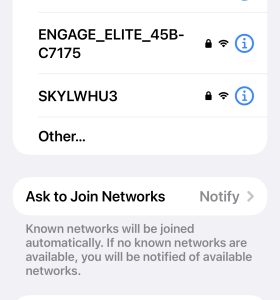
- Enter password: engage1234
🌐 Open the Portal
Once connected, open a browser and go to: http://192.168.4.1
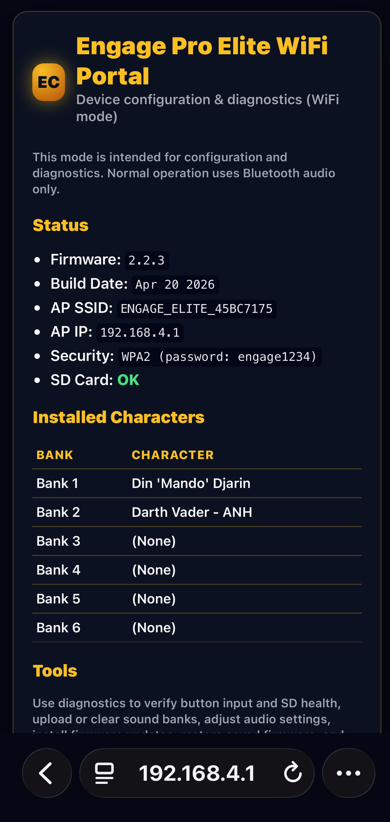
⚠️ Important Notes (Very Important)
- The device WiFi does NOT provide internet access
- Your phone may warn:
- “No internet connection”
- “Switch network?”
👉 Stay connected to the device WiFi
Navigate to the Upload Character Pack page via links at the bottom
➕ Installing a Sound Pack
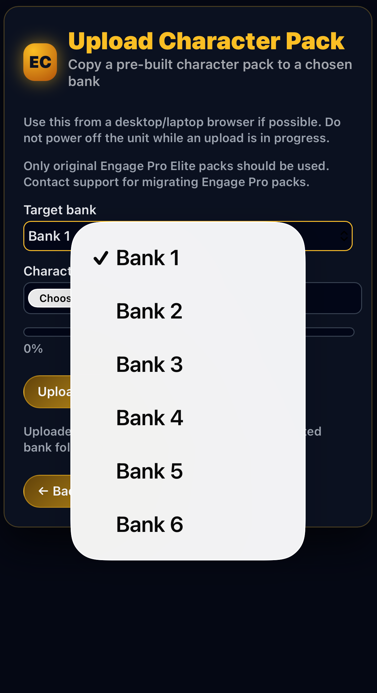
- Select from the dropdown the bank folder you wish to install to
- Select the Character pack zip file you have been sent.
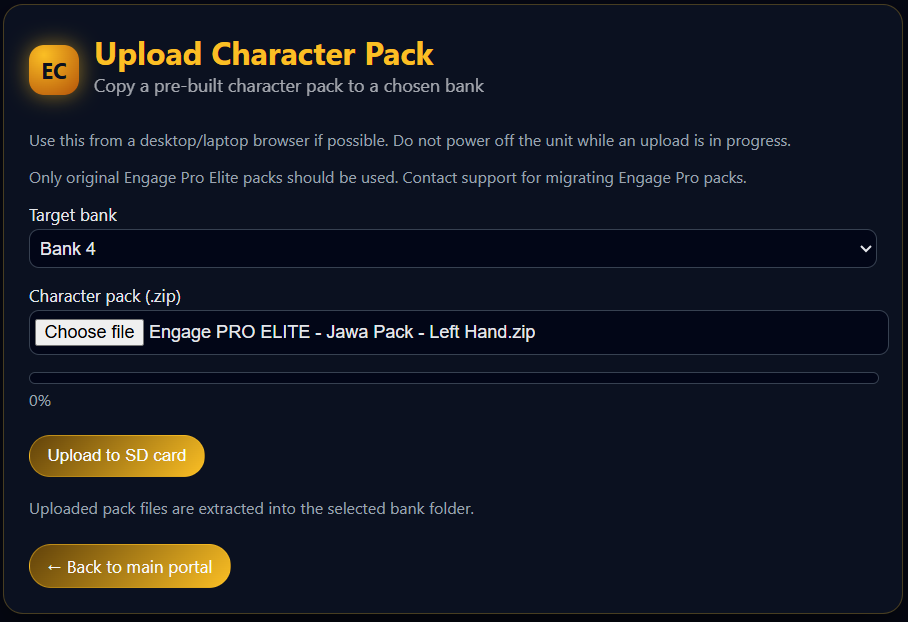
- Click on Upload
- Screen will confirm pack is installed. THIS CAN TAKE UPTO 5 MINS. You should now see it on the Main page.
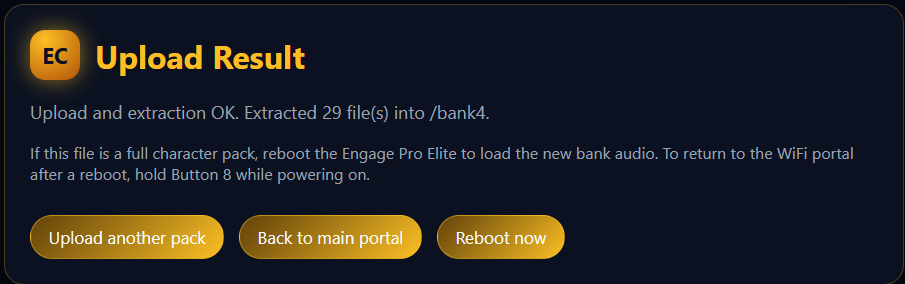
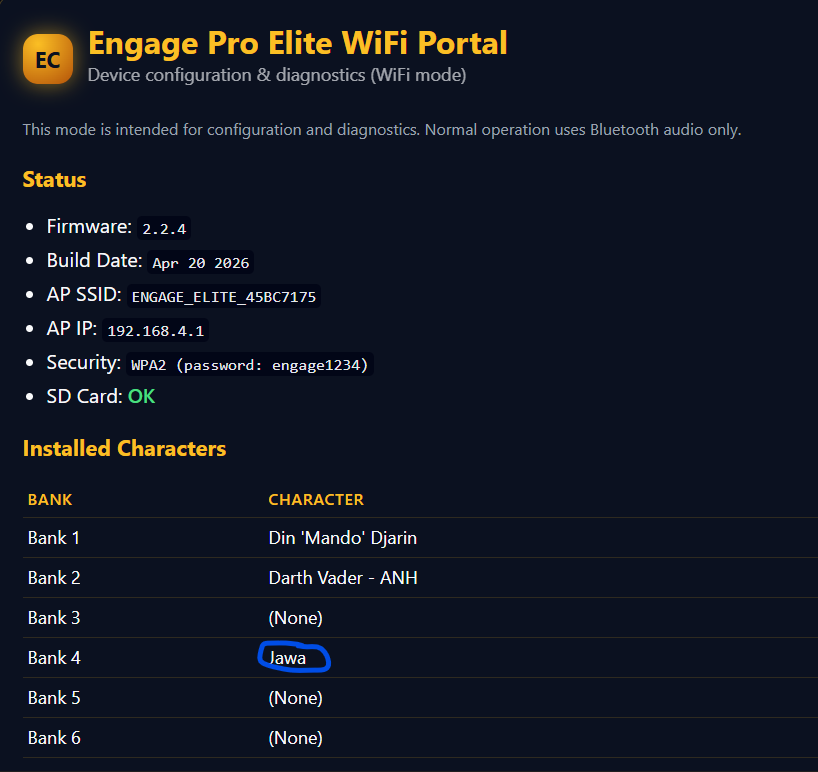
➖ Removing a Sound Pack
This will delete the files from your SD card!
- Navigate to the Manage Sound Backs page
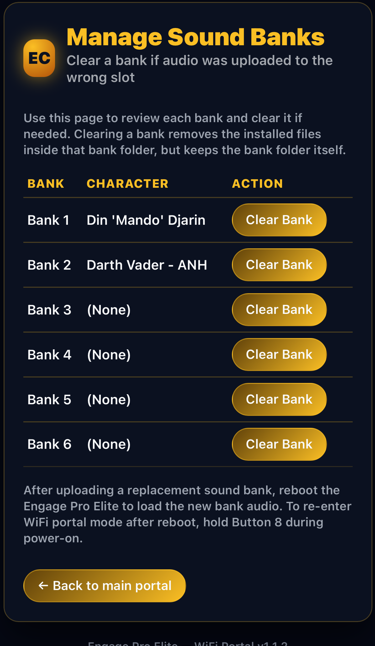
- Click the Clear Bank button next to the bank you with to clear. 3 A confirmtation page will show and the bank will now be empty.
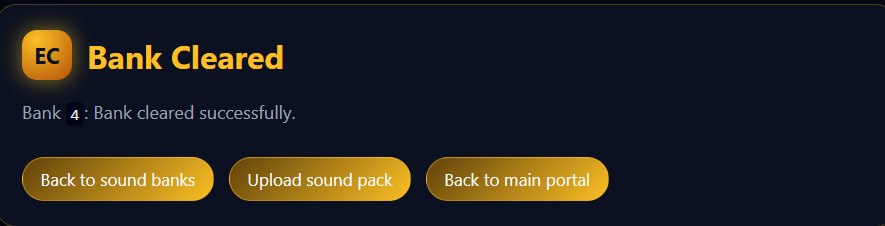
🔁 Test
- Boot device normally and wait for 1st Bank Boot announcement
- Switch banks using:
- Hold Button 1 + Button 8
- Trigger sounds to confirm everything is working
❌ Common Issues
No Sounds Playing
- Files not copied correctly
- Incorrect file names
- Wrong folder structure
Wrong Sounds Playing
- Files placed in wrong bank
- Old files not removed
Some Sounds Missing
- Missing required files
- Incorrect naming format
⚠️ Important Notes
- Do not rename bank folders (bank1, bank2, etc.)
- Always power off before removing SD card
- Only use properly formatted sound packs
🛠 Still Having Issues?
Was this article helpful?
Your feedback helps us improve these guides.