
Firmware Update Guide
This guide explains how to update the firmware on your Engage Pro Elite using the WiFi Portal.
A demonstration of upgrading firmware can be seen here -> Firmware Upgrade
⚠️ Before You Begin
Please read this carefully:
- Ensure the device has a stable power connection
- Do NOT power off during the update
- Only use official firmware from this Engage repository
📥 Step 1 – Download Firmware
- Go to the firmware releases page
- Download the latest
.binfile
Example: engage_pro_elite_v2.2.4.bin
📡 Step 2 – Enter WiFi Portal Mode
- Power off the device
- Hold Button 8
- Power on while holding Button 8
- Release once the device starts
📶 Connect to the Device
- On your phone or computer, open WiFi settings
- The device will now create its own WiFi network. Something similar to this.
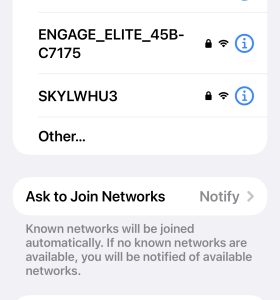
- Enter password: engage1234
🌐 Open the Portal
Once connected, open a browser and go to: http://192.168.4.1
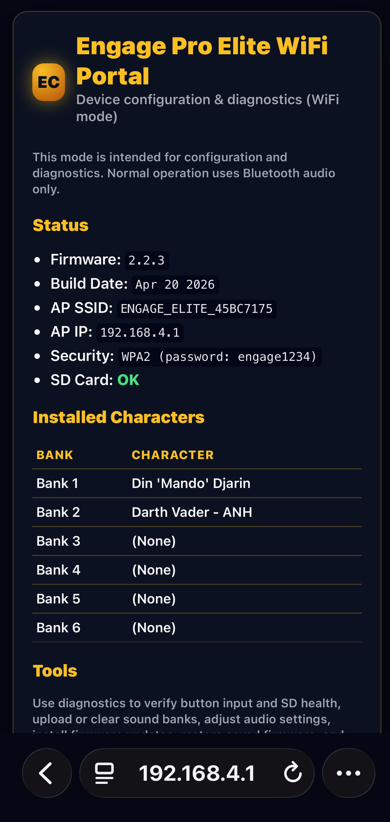
⚠️ If your device warns about no internet connection, stay connected.
⬆️ Step 5 – Upload Firmware
- Navigate to Firmware Update
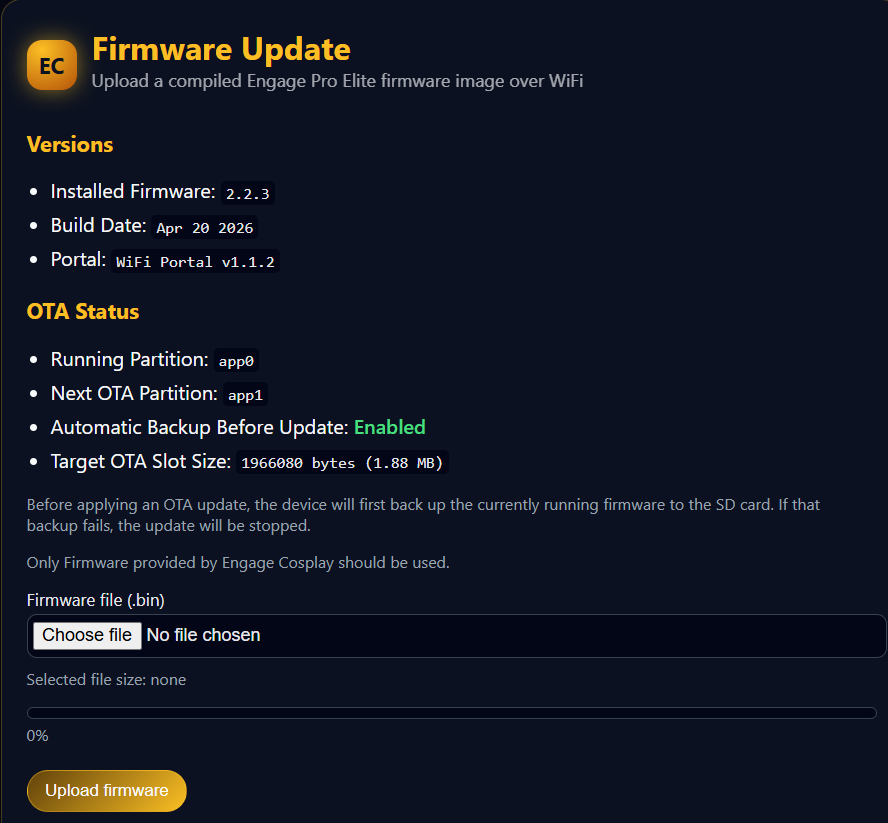
- Select the
.binfile - Start the upload
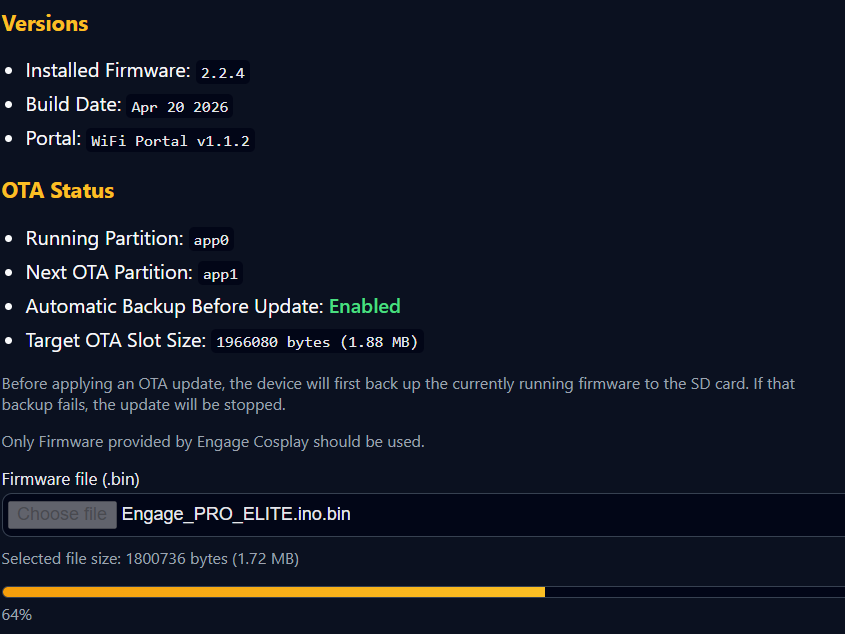
⏳ Step 6 – Installation
- The file will upload to the device
- Firmware will install automatically
- The device will reboot when complete
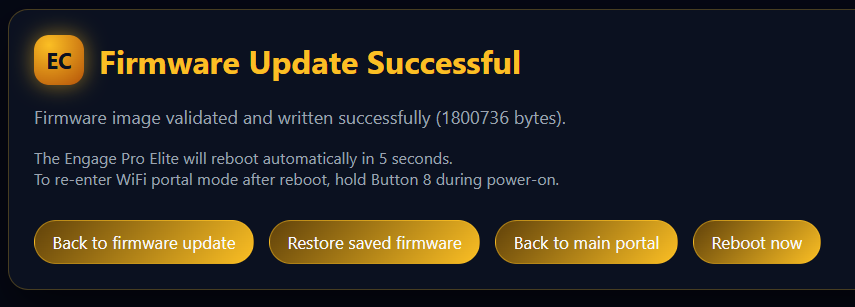
⚠️ Do NOT disconnect power during this process
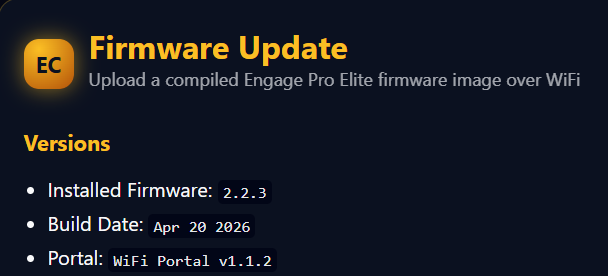
✅ Step 7 – Confirm Update
After reboot:
- Login to Portal to confirm Firmware version
- Device should start normally
- Test button inputs
- Confirm audio playback works as expected
❌ Common Issues
Portal Not Loading
- Not connected to device WiFi
- Mobile data interfering
- Incorrect IP address
Upload Fails
- File corrupted or incomplete
- Retry upload
- Reboot device and try again
Device Not Responding After Update
- Power cycle the device
- Retry the update process
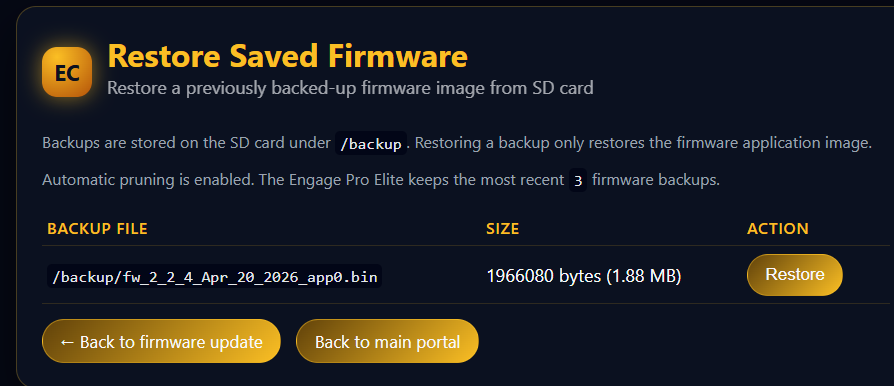
🔁 Recovery Tip
If something goes wrong:
- Re-enter WiFi Portal Mode (Button 8 at boot)
- Downgrade back to previous version. Option is available on the Firmware Update page on the portal.
⚠️ Important Notes
- Only install firmware intended for Engage Pro Elite
- Do not interrupt the update process
- Always use official firmware releases
🛠 Need Help?
👉 Troubleshooting Guide
👉 How to Report an Issue
Was this article helpful?
Your feedback helps us improve these guides.